
Google Takeout is the official way to get a copy of your Google Photos. It is an export tool, not a backup service: it does not keep your library in sync, and it does not delete anything from Google. This guide covers the current options and the parts people get wrong.
What Takeout does
Takeout creates an archive of the Google data you select. You can run a one-time export or schedule one every two months for a year. Google can email you a download link, or write the archive to Google Drive, Dropbox, OneDrive, or Box. If you select only Google Photos, you can schedule exports of new and updated photos.
The export is a snapshot of the account you signed in with. If you add photos later, you need another export.
Before you start
- Check how much you are exporting. Google Photos counts toward your Google account storage.
- Pick a destination with enough free space. A large library can be tens or hundreds of gigabytes.
- Use a desktop if you can. It is easier to manage several archive parts and to keep the machine awake during the download.
- Decide whether you need everything or only specific albums.
Create the export
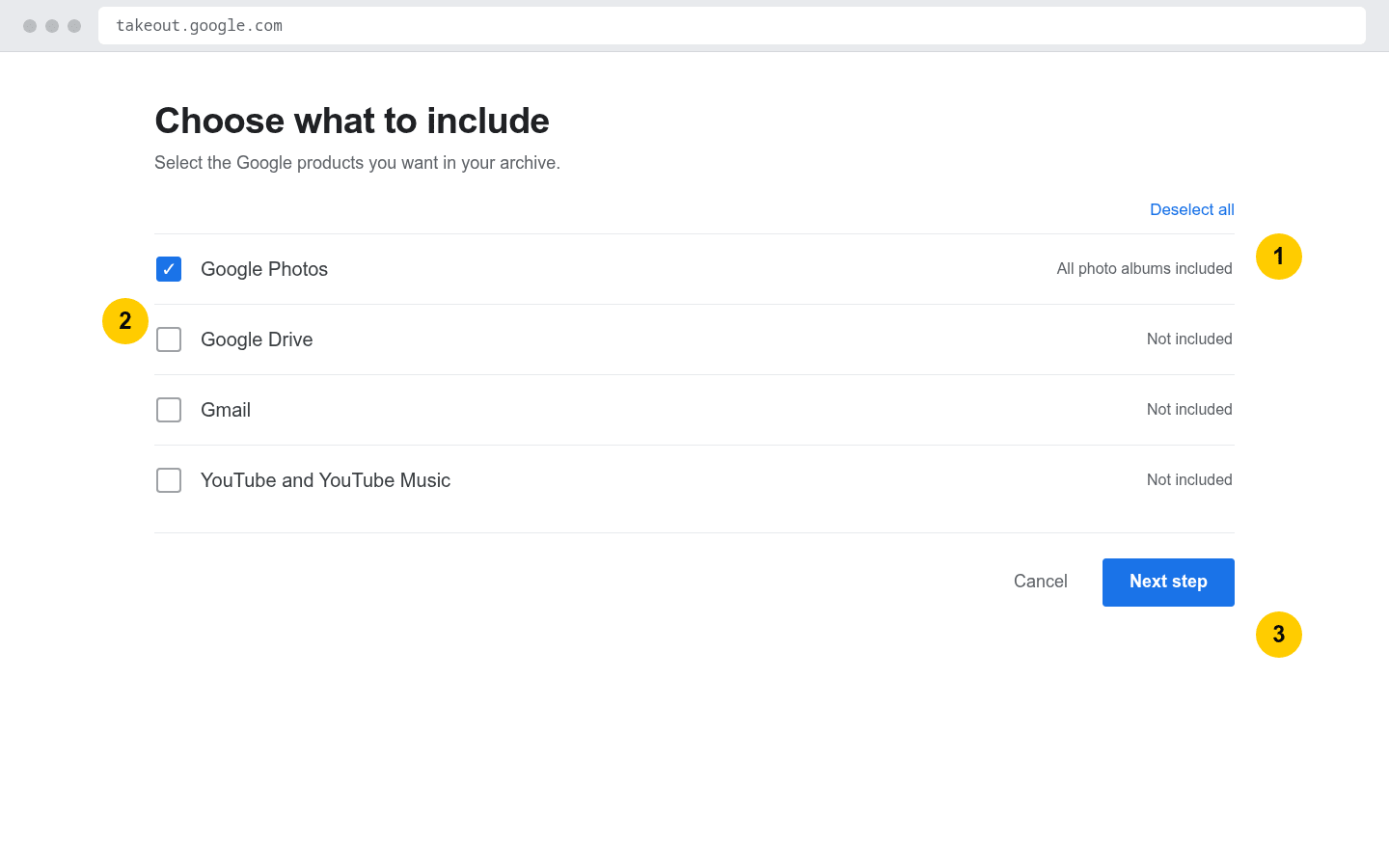
- Go to takeout.google.com and sign in.
- Click Deselect all, then select Google Photos.
- Click All photo albums included to keep everything or choose specific albums.
- Click Next step.
- Choose a delivery method: email link, Drive, Dropbox, OneDrive, or Box.
- Choose a frequency: Export once, or every two months for one year. Scheduled exports of new and updated data are available for Photos only.
- Choose .zip and an archive size: 1, 2, 4, 10, or 50 GB.
- Click Create export.
Download and check it
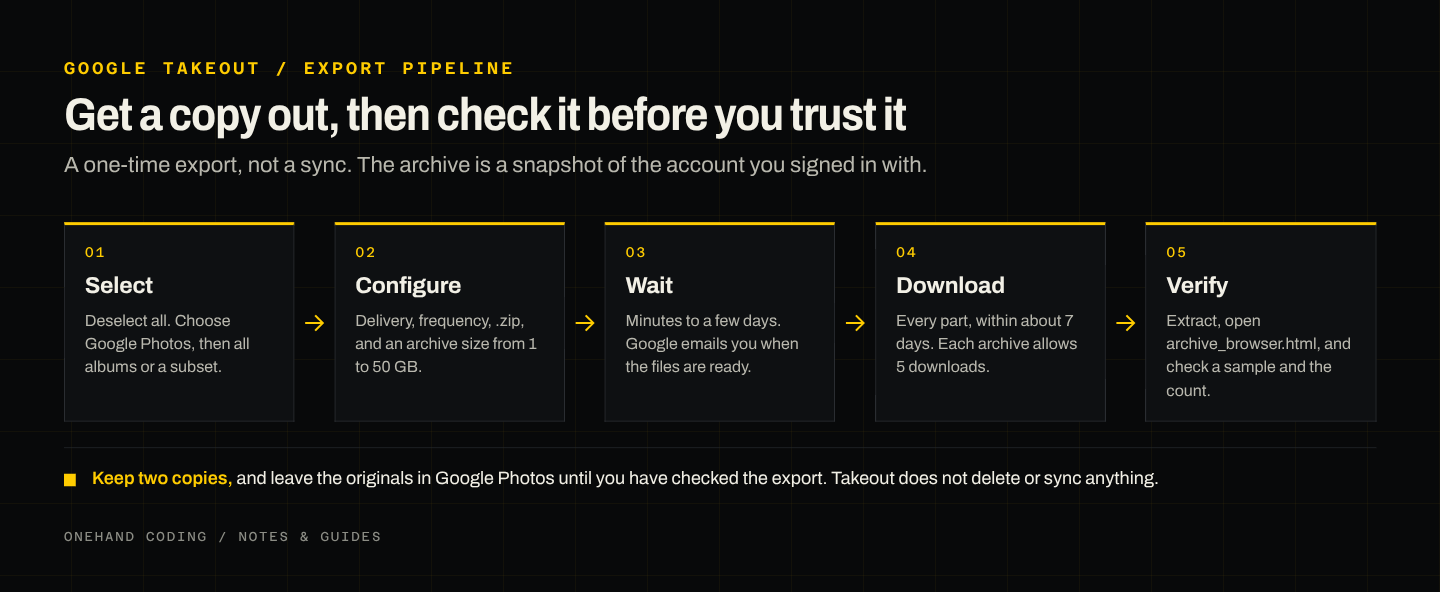
Google emails you when the archive is ready. Most exports finish the same day; large ones can take a few days. When the email arrives, download every part before the link expires.
- If your library is larger than the archive size you picked, Google splits it into numbered files. That is normal. Download all of them.
- Extract the zip files. Open
archive_browser.htmlfor Google's notes on the folder layout and file formats. - Photos and videos come with JSON sidecars that hold metadata such as dates and album information. Keep them with the files.
- Check a sample: open a few photos, play a video, and confirm the count looks right before you delete anything.
Common problems
- The link expired. Create a new export. Do not reuse an old link.
- The archive is split. Download the parts one at a time, or choose a larger archive size next time.
- Photos are missing. Check shared albums and partner sharing, and confirm you signed in with the right account.
- The export failed. Try a smaller archive size or export one album at a time.
- The download is slow. Use a wired connection, download one part at a time, and keep the machine awake.
After the download
- Keep two copies: one on an external drive, one in a different location or cloud account.
- Do not delete your Google Photos until you have verified the copy you want to keep.
- If you are moving to another service, check how it imports metadata. Not every photo app reads the JSON sidecars.
- Takeout does not delete or sync anything. It only gives you a copy.
The short version
Select Photos, choose a destination and archive size, and create the export. Download every part within about seven days. Extract, verify, and keep two copies. If you need the same data again later, run a new export.
Google's current instructions are at support.google.com/accounts/answer/3024190.